For Companies and Institutions
-
Commercial Banking
We provide tailored credit, financing, treasury and payment solutions for businesses of all sizes and commercial real estate. Backed by the strength and stability of J.P. Morgan, our dedicated experts deliver industry-specific guidance and services, empowering you to manage cash flow, seize growth opportunities and achieve your strategic goals. -
Global Corporate Banking
We help clients achieve their long-term strategic goals through financing, liquidity, payments, risk management and investment banking solutions. -
Investment Banking
Providing investment banking solutions, including M&A, capital raising and risk management, for a broad range of corporations, institutions and governments. -
Payments
Your partner for commerce, receivables, cross-currency, working capital, blockchain, liquidity and more.
Key Links
For Institutional Investors
-
Asset Management
Putting our long-tenured investment teams on the line to earn the trust of institutional investors.
-
Markets
Direct access to market leading liquidity harnessed through world-class research, tools, data, and analytics.
-
Securities Services
Helping institutional investors, traditional and alternative asset and fund managers, broker dealers and equity issuers meet the demands of a rapidly evolving market.
-
Global Research
Leveraging cutting-edge technology and innovative tools to bring clients industry-leading analysis and investment advice.
-
Prime Services
Helping hedge funds, asset managers and institutional investors meet the demands of a rapidly evolving market.
-
Global Liquidity Solutions
Global short-term fixed income strategies designed to help clients manage liquidity through the cycle.
Key Links
For Individuals
-
Wealth Management
With J.P. Morgan Wealth Management, you can invest on your own or work with an advisor to design a personalized investment strategy. We have opportunities for every investor.
-
Private Bank
A uniquely elevated private banking experience shaped around you.
-
Personal Investing (UK only)
Invest with J.P. Morgan Personal Investing, a platform for UK-based clients with the human expertise, intuitive app and tools to help you work towards your long-term goals.
For Employers
-
Workplace Solutions
Enhance your equity compensation offering with solutions designed to empower your employees and bring your reward strategy to life.
Key Links
Who We Serve
Key Links
All Insights
Explore a variety of insights.
Key Links
Insights by Topic
Explore a variety of insights organized by different topics.
Key Links
Insights by Type
Explore a variety of insights organized by different types of content and media.
Key Links
About Us
We aim to be the most respected financial services firm in the world, serving corporations and individuals in more than 100 countries.
Key Links
Rewards how-to guide page
Applies only to One Card with Rewards programs.
As an authorized redeemer, you can view the number of Points accumulated within your One Card with Rewards program directly from the home screen in PaymentNet®.
View available Points
- Log in to PaymentNet.
- The Redeem Rewards panel appears in the left column on the home page.
- The number of Points available to you for redemption are displayed within the Redeem Rewards panel.
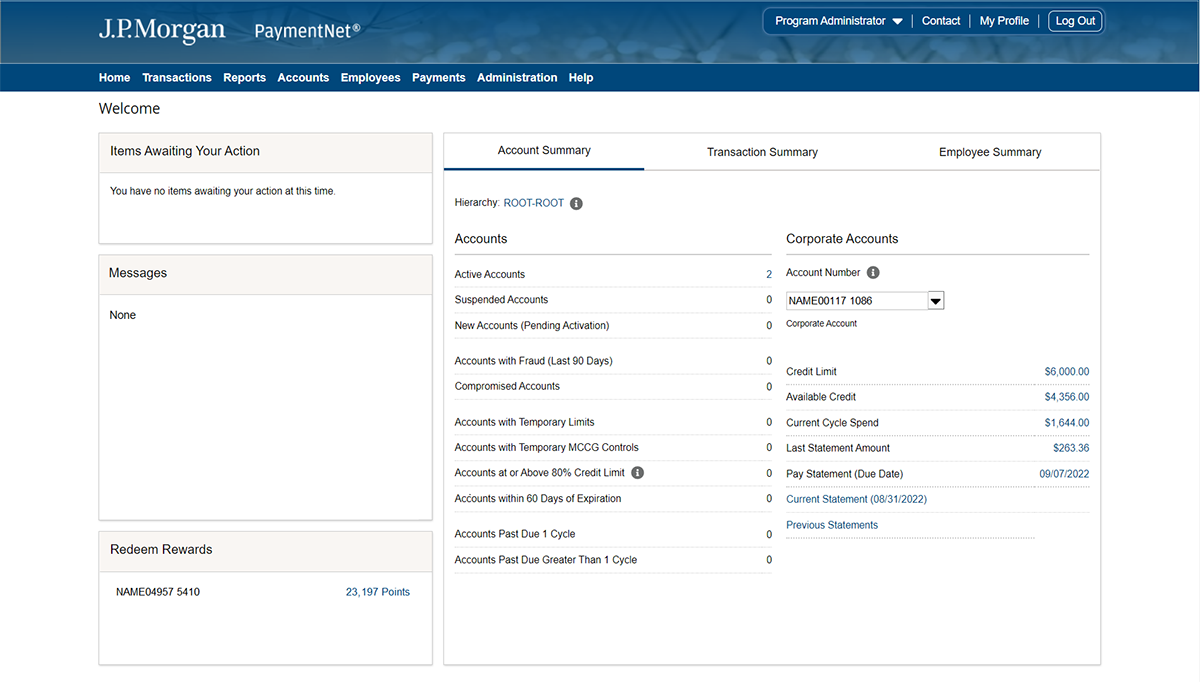
As an authorized redeemer, you can access the number of Points accumulated within your One Card with Rewards program directly from the Rewards website.
Log into your Rewards website
- Log in to PaymentNet.
- Click on the number of available Points, located in the Redeem Rewards panel, to be redirected to the Rewards website. From here, you can redeem Points for cash back, gift cards, merchandise or travel.

Program Administrators can add or remove authorized redeemers to the One Card with Rewards program directly from PaymentNet®.
Add or remove authorized redeemers
- Log in to the PaymentNet.
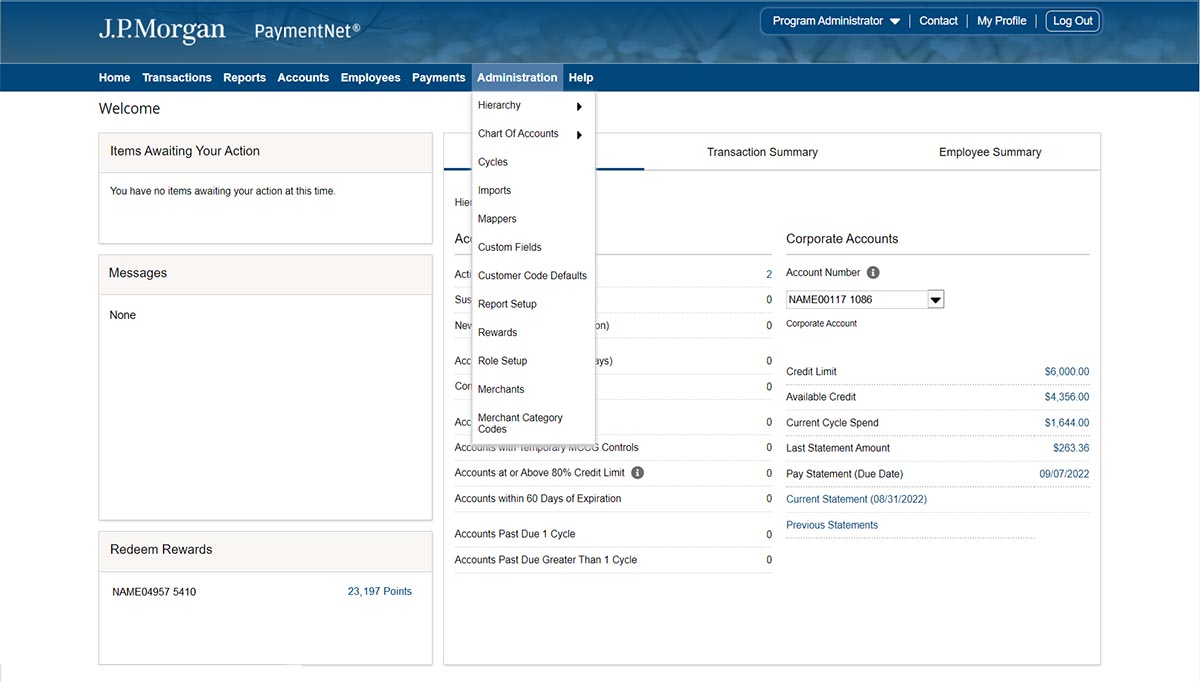
- Click on the Administration tab and select Rewards.
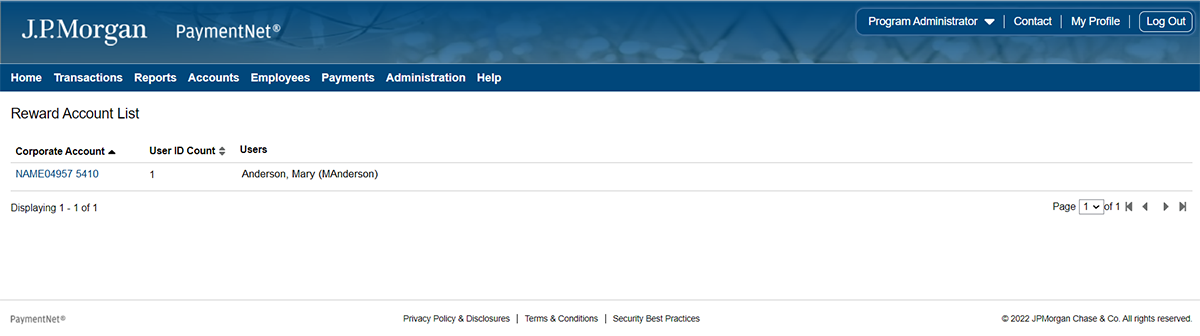
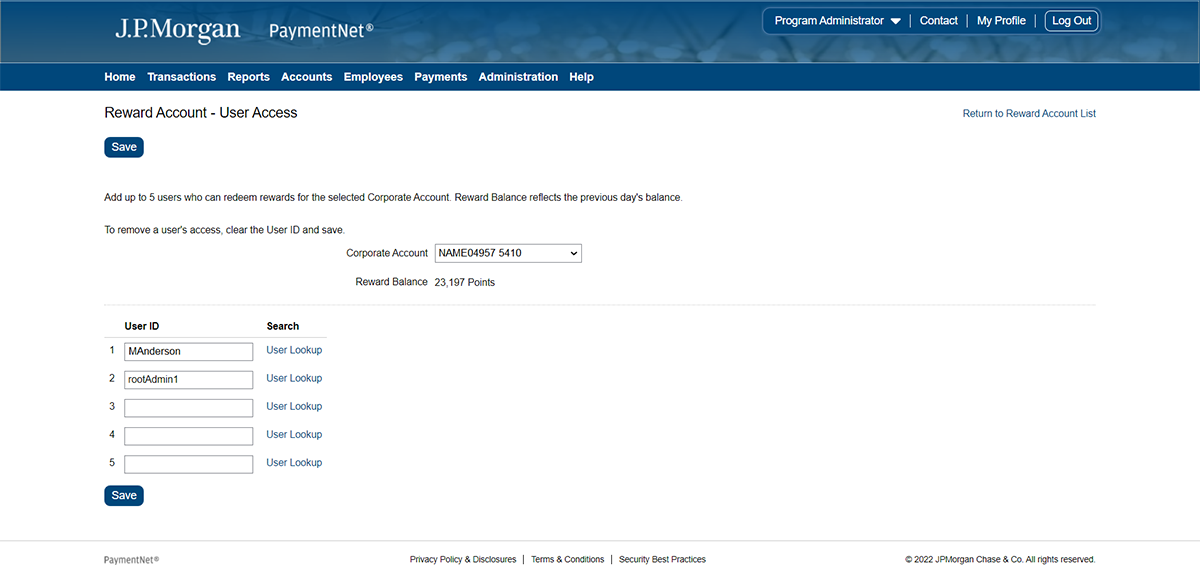
3. The Reward Account List displays who the authorized redeemers are on each corporate account managed by the Program Administrator.
4. Click on the specific Corporate Account you wish to add or remove an authorized redeemer.
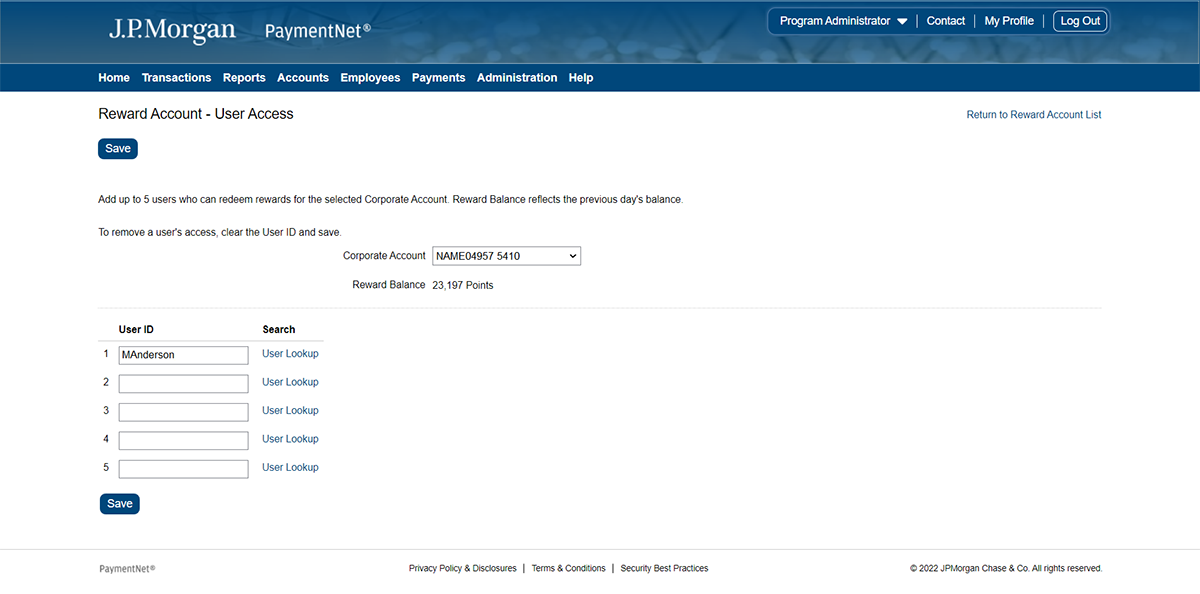
5. To add an Authorized Redeemer, click the User Lookup link.
6. Search for and designate a PaymentNet user as an authorized redeemer in the popup box.
7. Click Select in the popup box to add a PaymentNet user as an authorized redeemer and return to the main screen.
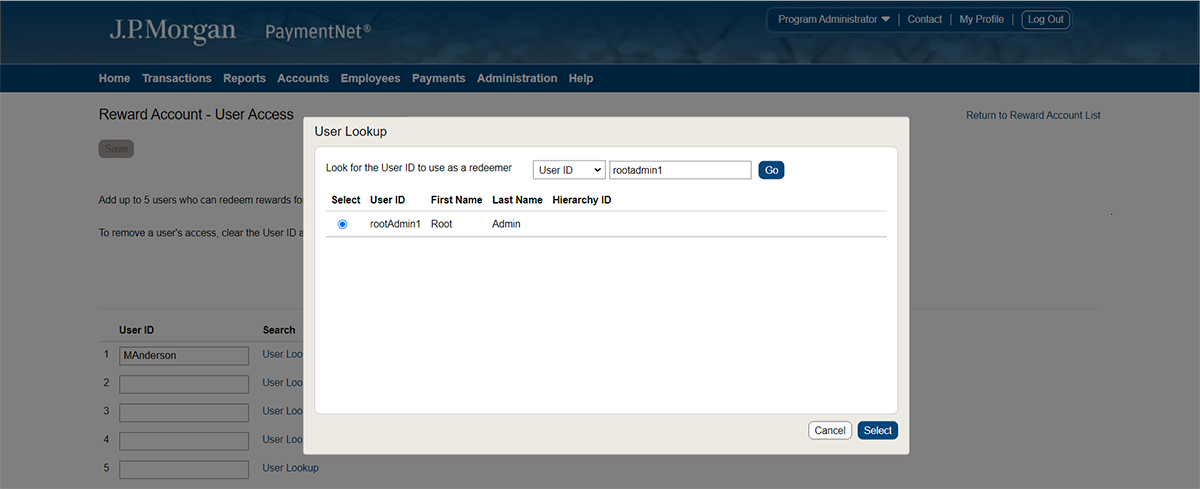
8. To remove an authorized redeemer, delete the authorized redeemer User ID from within the text field.
9. Click Save to complete the process of adding or removing the authorized redeemer.
You're now leaving J.P. Morgan
J.P. Morgan’s website and/or mobile terms, privacy and security policies don’t apply to the site or app you're about to visit. Please review its terms, privacy and security policies to see how they apply to you. J.P. Morgan isn’t responsible for (and doesn’t provide) any products, services or content at this third-party site or app, except for products and services that explicitly carry the J.P. Morgan name.