Note: The Template Details Report can be downloaded for a maximum 250 templates at one time. Please adjust your filters to limit results accordingly. For questions or support, contact hybrid.address.migration@jpmchase.com.
Templates
Effective November 14, 2026, certain domestic payments must comply with hybrid address requirements. Where address information is entered, City/Town and Country must be provided in their dedicated fields. Once the mandate takes effect in November, any Active Wire, Book Transfer and Drawdown template missing required address information will be moved to an On Hold status. You cannot use On Hold templates for payments until they are updated and reactivated. Update your templates now to avoid any interruptions processing payment.
Utilize the below navigation bar to jump to the Templates section that is relevant to you.
Identifying Non-Compliant Templates
To identify templates that need to be updated in bulk, generate a Template Report - Detail from J.P. Morgan Access®.
Navigate to Reports & Insights → Reports → Payments → Template Report and Customize to the following criteria:
- Type of Template Report: Detail
- How do you want to view it? Excel
- Date Type: Creation Date
- Transaction Date: All
- Accounts: All
- Template Status: All statuses except Saved, Rejected, and Inactive
- Data Display:
- Only Include Accounts with Activity
- Include Payment Details
- Payment Methods: Wire, Book Transfer, Drawdown
- Payment Method Currency: Same-Currency, Cross-Currency
- Template Creation Method: Manual, Imported
- Template Type: Enhanced, Standard
After downloading the report, review each applicable party and determine whether address information is missing the required City/Town and Country values. Use the following criteria to identify non-compliant templates:
By Order Party
- If any value is present in columns CC, CD, CE, or CF, then both CE (City) and CF (Country) must be populated.
Beneficiary / Debit Party
- If ID type is not ‘SWIFT’ in column CQ and If any value is present in columns CV, CW, CX, or DB, then both CX (City) and DB (Country) must be populated.
Beneficiary Bank / Debit Bank
- If ID type is not ‘SWIFT’ in column DL and if any value is present in columns DO, DP, DQ, or DR, then both DQ (City) and DR (Country) must be populated.
Intermediary Bank
- If ID type is not ‘SWIFT’ in column DW and If any value is present in columns DZ, EA, EB, or EC, then both EB (City) and EC (Country) must be populated.
Updating Standard Templates
When creating or modifying Standard Templates, the Routing/Reference Information section uses the same updated field labels as in free-form payments. These changes apply to all parties where an address may be entered, including Beneficiary, Beneficiary Bank, Intermediary Bank, and By Order Of.

The first image shows the payment party details screen displaying Routing/Reference Information with address fields. The City, State/province, Zip/Postal Code are in one line.
The second image shows the updated payment party details screen displaying Routing/Reference Information with address fields. City/town are now a separated field from the State and Zip/postal code field.
| Today, template addresses are captured in an unstructured format. | Before November 14, 2026, to comply with hybrid address standards, template addresses must match the new labels to ensure both City and Country are provided. |
User Recommendations
- If an address is provided, enter City/Town and Country in their dedicated fields.
- Enter State/Province, Zip/Postal Code in its dedicated field, where applicable.
- Append any details previously kept in Address Line 2 to the end of Address Line, which now allows up to 70 characters.
How to bulk-update Standard Templates:
1. In the upper right of your Templates grid, go to Utilities (three dots menu) and select “Export all Active Templates to Access CSV.”
2. For any party with an address, make sure the City and Country columns are filled in:
- Beneficiary: Columns U (Field 21) and W (Field 23
- Beneficiary Bank: Columns AE (Field 31) and AF (Field 32)
- Intermediary Bank: Columns AU (Field 47) and AV (Field 48)
- By Order Of: Columns BD (Field 56) and BE (Field 57)
- Debit Party: Columns BO (field 67) and BP (field 68)
- Debit Bank: Columns BV (field 74) and BW (field 75)
3. Make the necessary changes in the CSV file, save the file with a new name, then re-import the updated template CSV file.
- Note: For each template that is modified, update the Template Name in Column B (Field 2) as well. This helps distinguish the updated template and prevents duplicate name errors.
4. After importing, delete the original version(s) of your updated template(s) to prevent duplicates.
Automated Updates for Standard Templates
To help meet hybrid address requirements, J.P. Morgan Access will automatically update eligible standard templates to comply with hybrid address requirements. The tool will review existing template data and bank reference information, and, where applicable, reorganize that information into the appropriate fields.
- Updates will be based only on existing template address data and bank reference information.
- Template statuses are not impacted and will remain unchanged. Payments in process will not be impacted by these updates.
Templates must meet the following criteria to be eligible for automated updates:
- The template is a standard template in Pending Approval, Partially Approved, Pending Activation, or Active status.
- The payment method is Wire, Book Transfer, or Drawdown.
- The template was created, modified, or used within the last 13 months.
What to expect
Scenario 1
If the City/Town field is blank, Access may auto-populate this field if there is a strong match in other address fields.

The first image shows the payment party details screen displaying Routing/Reference Information with address fields. The City, State/province, Zip/Postal Code are in one line below the Address Line 2. The Address Line 2 field contains the City, State/Province, and Zip/Postal Code data, while the City, State/Province, Zip/Postal Code field is blank.
The second image shows the updated payment party details screen displaying Routing/Reference Information with address fields. The Address Line 2 field has been relabeled with the State/Province, Zip/Postal Code field. Additionally, now City/Town is an independent field. The Country field has been updated with a value.
| City/Town data may be included in other address lines. | Access may populate the City/Town field with the detected City/Town value. |
Scenario 2
If Country is blank, Access may auto-populate it when it finds a strong match in other address fields.

The first image shows the payment party details screen displaying Routing/Reference Information with address fields. The City, State/Province, Zip/Postal Code are in one line below the Address Line 2. The Address Line 2 field contains the City, State/Province, Zip/Postal code, and Country data, while Country field remains blank.
The second image shows the updated payment party details screen displaying Routing/Reference Information with address fields. The Address Line 2 field has been relabeled with the State/Province, Zip/Postal Code field. Additionally, now City/Town is an independent field. The Country field has been updated with a value.
| Templates may include Country information in other address lines. | Access may populate the Country field with the detected Country value. |
Scenario 3
If additional details follow the City/Town value, Access may keep City/Town in its field and move the rest to the State/Province, Zip/Postal Code field, as space allows.
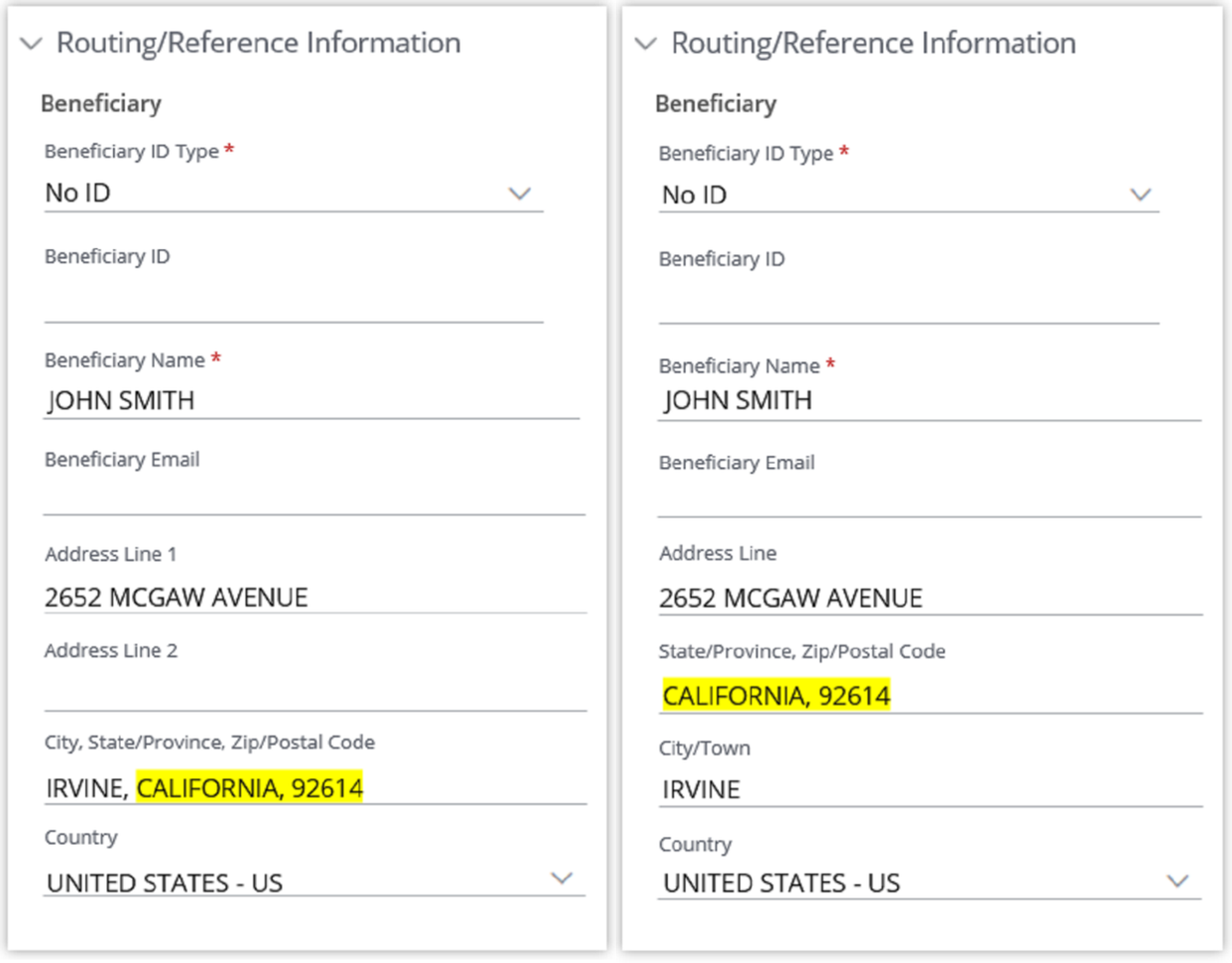
The first image shows the payment party details screen displaying Routing/Reference Information with address fields. The City, State/province, Zip/Postal Code are in one line below the Address Line 2. The Address Line 2 field is blank.
The second image shows the updated payment party details screen displaying Routing/Reference Information with address fields. The Address Line 2 field has been removed and replaced with a State and Zip/postal code field. Additionally, now City/town is an independent field. The newly separated fields have had their information transferred from the previous version.
| Currently City, State and Postal code are captured in the same field. | Access will retain the City/Town value and move the remaining address details to the State/Province, Zip/Postal Code field, as space permits. |
Scenario 4
For Bank data, if a matching record is found in J.P. Morgan’s bank reference data, Access may update the bank’s address using the corresponding reference data.

The first image shows the payment party details screen displaying Routing/Reference Information with address fields. The City, State/province, Zip/Postal Code are in one line below the Address Line 2. Both the Address Line 2 and City, State/Province, Zip/Postal Code fields are blank.
The second image shows the updated payment party details screen displaying Routing/Reference Information with address fields. The Address Line 2 field has been relabeled with the State/Province, Zip/Postal Code field. Additionally, now City/town is an independent field and has been updated with a value.
User recommendations
To identify templates updated by the system:
1. Go to Manage Templates.
2. Apply the following filters:
a. Template Type – Standard.
b. Payment Method – Wire, Book Transfer, Drawdown.
c. Status – Pending Approval, Partially Approved, Pending Activation, Active.
d. For Active templates – Last Used date – last 13 months.
3. Select the template(s), then export the template details report using More Actions > Export to Excel.
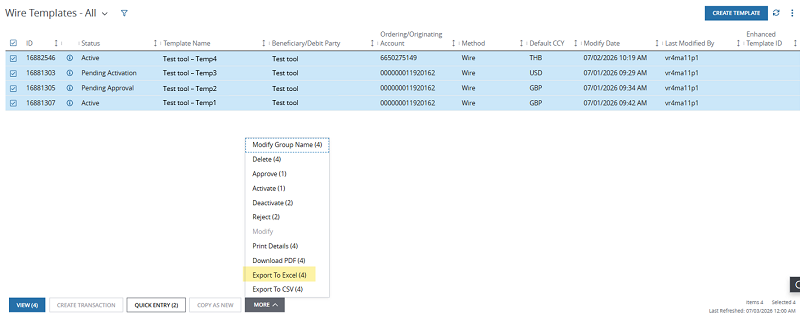
An image that shows the Wire Templates grid and displaying selected templates. All templates have been selected and the option to "Export to Excel (4)" is highlighted.
4. In the template details report, filter by Last Modified By = System.
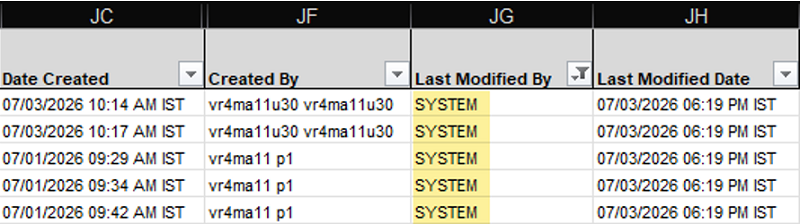
An image that shows the Wire Template Details Report excel download. The report displays the Date Created, Created By, Last Modified By, and Last Modified Date columns.
To review address format changes:
- Select Template View Details > View History.
- Open the modified event to view the list of changes, including the old and new values for every updated field.
- Review address information in updated fields and make any corrections, as needed. Client are responsible for verifying the accuracy, which is important for risk mitigation.
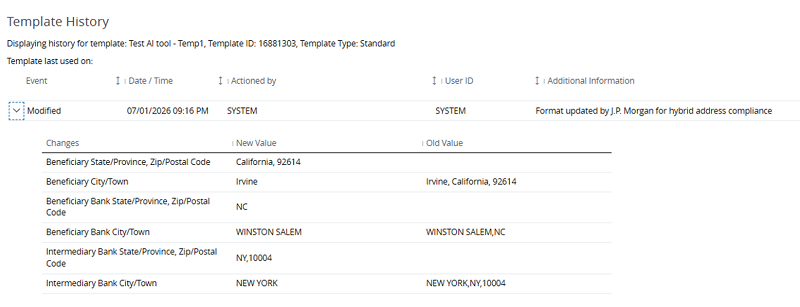
An image that shows Template History screen displaying updates made to a payment template.
Updating Enhanced Templates (BVLs)
When creating new BVLs, the same label changes apply as Standard Templates.
We recommend only updating your active BVLs once the dedicated City/Town and Country fields are available to you; all other labels will remain unchanged.

The first image shows the Enhanced Template party details screen displaying lines 1-6. Lines 1-4 contain contact and address data.
The second image shows the enhanced template Beneficiary party details screen displaying lines 1-4 and the final 2 lines labeled "City/Town" and "Country". Now all lines contain contact and address details.
| Today, when modifying your active BVLs, your addresses are captured in an unstructured format. | Before November 14, 2026, to comply with hybrid address standards, reformat your address details according to the updated labels. |
User recommendations
1. Move City/Town and Country data to their dedicated fields.
Global ACH Templates
What to expect
Unlocked and locked templates
Once the mandate takes effect in November, locked and open templates will remain in their current status. If you attempt to create a batch from a template that is missing a required field, an error message will display indicating that the required field currently has a null value.
Example Error Messages:
Town Name (Value = null) is invalid.
Country Code (Value=null) is invalid.
The template will need to be modified to add a value for the new required fields. For open templates, once the changes are submitted, the template will be available to use right away. For locked templates, once the changes are submitted, a secondary approval will be required before the modification takes effect.
Automated updates for SEPA templates
To help meet hybrid address requirements, J.P. Morgan Access will automatically update eligible templates to comply with hybrid address requirements. The tool will review existing template data and, where applicable, reorganize that information into the appropriate fields.
- Updates will be based only on existing template address data
- Template statuses are not impacted and will remain unchanged. Payments in process will not be impacted by these updates.
All template updates are performed in accordance with applicable data privacy and security regulations. No client data will be shared outside of J.P. Morgan systems as part of this process.
Scenario
For SEPA templates that currently have data in Address line 1 or 2, Access may auto-populate Town Name if a strong match is identified within the Address data provided.
If a strong match is identified, the Town Name will be removed from the Address line and placed in the dedicated Town Name field.
Town Name data may be included in one of the Address Lines
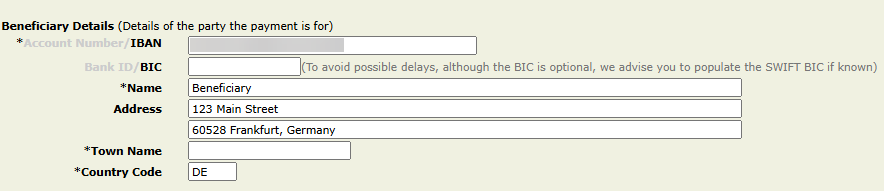
Access may populate the Town field with the detected Town name value.
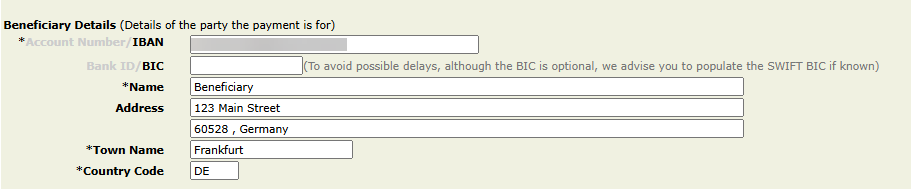
To identify templates updated by the system: (SA only access)
- Under Support Hub, select Global ACH Audit Log
- Click on "Refresh"
